The Silent Bottleneck: Why PCIe 5.0 SSD Heat is Secretly Ruining Your Laptop’s Performance
You launch a heavy application, a massive 4K video render, or an unoptimized AAA game on your premium 2026 laptop. Five minutes in, the system stutters. Frame times spike erratically, the UI becomes unresponsive, and your cooling fans sound like jet engines spooling up on a runway. Your immediate instinct is to open Task Manager and curse your CPU or GPU for thermal throttling.
But you are likely blaming the wrong component.
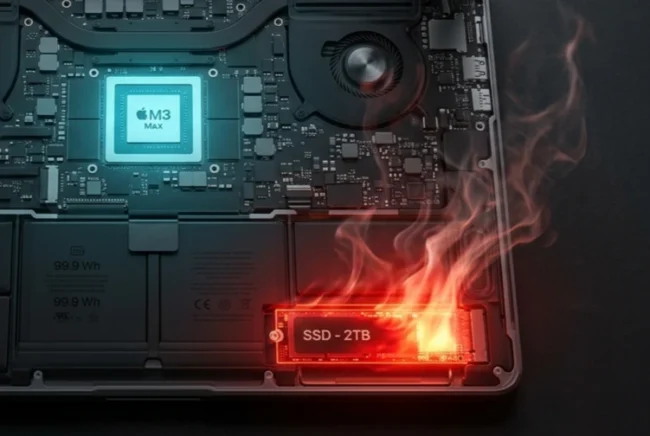
As the industry aggressively transitions into the era of PCIe 5.0 storage in mobile form factors, a new, hidden thermal threat has emerged. Your processor might be perfectly fine, but the bleeding-edge Gen 5 SSD sitting inches away from it is actively melting down, saturating your laptop’s thermal budget, and dragging the entire computing experience down with it.
Here is the comprehensive, technical reality of why your PCIe 5.0 SSD is the true bottleneck, and how this localized heat epidemic is ruining mobile performance.
The 14-Watt Problem: Why Gen 5 SSDs are Space Heaters
The generational leap from PCIe Gen 4 to Gen 5 promised massive sequential bandwidth—pushing past 12,000 MB/s to an astonishing 14,000 MB/s. However, the laws of thermodynamics dictate a harsh penalty for moving that much data within a microscopic footprint.
The Power Draw Explosion: A standard, high-end PCIe 4.0 SSD typically peaks around 5 to 7 watts under heavy load. The new breed of PCIe 5.0 SSDs, driven by power-hungry multi-core controllers (like the ubiquitous Phison E26), can pull upwards of 10 to 14 watts during sustained read and write operations.
The Controller Overdrive: The SSD controller is essentially a miniature processor managing immense, chaotic data traffic. At 14 GB/s, this controller is working in severe overdrive, generating thermal energy vastly faster than a bare M.2 2280 PCB can possibly dissipate without active cooling.
The 85°C Danger Zone: Most Gen 5 controllers are engineered with a hard thermal limit of around 85°C. In a desktop motherboard, massive finned aluminum towers and dedicated airflow prevent this limit from being reached. However, in a cramped laptop chassis with zero direct airflow over the M.2 slot and less than 3 millimeters of vertical clearance, a Gen 5 SSD can idle at a dangerously warm 55°C and hit that 85°C critical threshold in under 60 seconds of heavy localized load.
The Shared Heat Pipe Catastrophe
Laptops do not cool their internal components in isolation. Because of extreme spatial limitations, OEMs utilize a unified thermal design, meaning a dangerously hot SSD directly and immediately impacts your processor.
The Ambient Chassis Soak: When a Gen 5 SSD hits 80°C and beyond, it radiates that heat directly into the surrounding motherboard PCB and the localized, trapped air pocket within the lower laptop chassis. This creates a severe ambient “heat soak” effect.
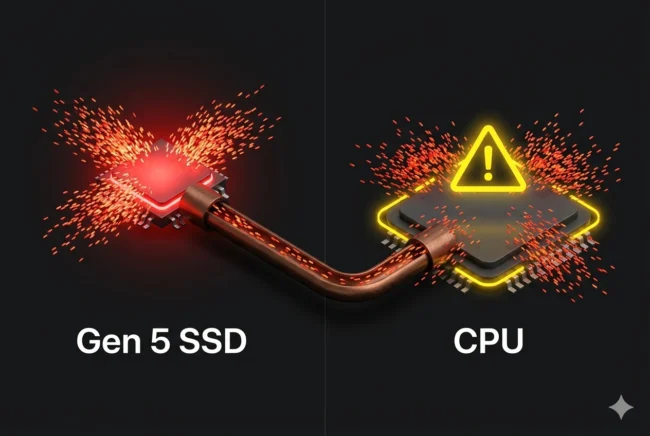
Shared Thermal Budgets: Many thin-and-light and premium gaming laptops route their copper heat pipes directly over, or immediately adjacent to, the M.2 storage slots before reaching the radiator fins. If the SSD is dumping 14W of extreme heat into the chassis, the cooling solution’s capacity to pull heat away from the CPU and GPU is severely reduced.
The Phantom CPU Throttle: The CPU sensors detect rising ambient temperatures and an overwhelmed cooling loop. To prevent catastrophic hardware failure, the motherboard firmware forces the CPU to drop its boost clock speeds. You blame the processor for throttling, but the processor is merely reacting to the thermal bomb detonating in the storage bay.
The Anatomy of a Thermal Throttle
Unlike a CPU, which subtly and gradually ramps down its frequency, an overheating PCIe 5.0 SSD engages in a frantic, highly disruptive battle for self-preservation that ruins system stability.
Link-State Thermal Throttling: Modern Gen 5 firmware employs multi-stage throttling. When the drive reaches critical temperatures, it doesn’t just slow down gracefully; it aggressively drops its interface protocol. It will physically step down from PCIe 5.0 speeds to PCIe 4.0, or even PCIe 3.0 speeds, attempting to instantly cut power consumption.
System Interrupts and Frame Pacing: When a drive forcefully drops from 14 GB/s down to 1 GB/s to shed heat, the CPU is left waiting for data. This is known as an I/O hang. If you are experiencing micro-stutters, delayed texture pop-ins, or sudden audio desyncs in heavy applications, it is almost certainly the SSD slamming the brakes to save its own silicon.
The Controller vs. NAND Paradox: Laptop engineers face a brutal paradox. The SSD controller desperately needs to be kept cold to prevent crashing, but the actual NAND flash memory modules prefer to operate warm (around 40°C to 50°C) for optimal write efficiency and longevity. Over-cooling the entire drive harms the flash endurance, while under-cooling kills the controller.
The 2026 SSD Crashing Epidemic
In early Gen 5 iterations, thermal throttling was viewed as just a performance nuisance. But as speeds have increased, the consequences of overheating in laptops have become critical to data integrity.
The Thermal Shutdown: Independent testing of early Gen 5 drives revealed a terrifying flaw: when operated without massive desktop-grade heatsinks, some drives would bypass link-state throttling entirely and trigger a hard thermal shutdown within three minutes to prevent the controller from physically melting.
Data Loss Risks: If your laptop SSD triggers an emergency shutdown while you are saving a 4K video render, compiling code, or writing to a database, you risk total file corruption and operating system crashes (Blue Screens of Death).
The Manufacturer Warning Label: Almost all premium Gen 5 SSDs are specifically sold with a warning that a heatsink is mandatory. Laptop manufacturers, eager to boast about Gen 5 speeds on their marketing spec sheets, are often shipping these drives with woefully inadequate copper-foil stickers that become heat traps rather than effective heat dissipators.
How to Diagnose and Fix the True Bottleneck
If you suspect your laptop is suffering from Gen 5 thermal saturation, you must fundamentally change how you monitor and manage your hardware.
Ditch Task Manager: The default Windows Task Manager will not accurately report link-state drops, I/O hangs, or granular SSD temperatures. You must utilize dedicated hardware monitoring software (like HWiNFO64) to specifically watch the “Drive Temperature 2” sensor, which monitors the volatile controller rather than the cooler NAND modules.
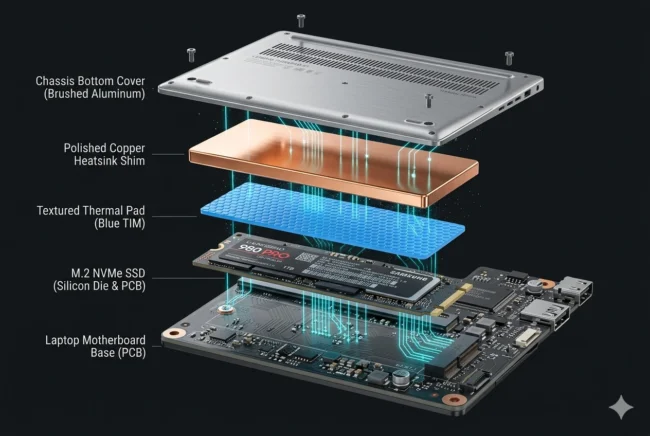
The Copper Shim Solution: If your laptop chassis allows it, remove the useless thermal sticker provided by the OEM. Replace it with a pure copper shim and high-quality thermal pads (such as Gelid Extreme) designed specifically to bridge the microscopic gap between the SSD controller and the laptop’s bottom aluminum casing. This effectively turns the entire bottom of your laptop into a giant passive heatsink.
The Gen 4 Downgrade Strategy: The most effective fix for 90% of laptop users is a strategic downgrade. A premium PCIe 4.0 SSD (like the Samsung 990 Pro or WD Black SN850X) draws significantly less power, generates manageable heat, and will actually deliver better sustained performance in a laptop over long periods than a heavily thermally-throttled Gen 5 drive.
Final Verdict: Speed Without Control is Useless
We have entered a hardware era where storage is no longer a simple, plug-and-play component; it is a massive thermal load that requires the exact same cooling respect as a high-end discrete GPU. Installing a bare PCIe 5.0 SSD into a tightly packed laptop chassis is the equivalent of dropping a hypercar engine into a go-kart without a radiator.
Before you blame your Intel or AMD processor for your laptop’s stuttering performance and aggressive fan noise, check your storage thermals. The true bottleneck is likely hiding under a flimsy thermal pad, quietly choking your entire system to death.
Tech ReviewerFounder & Publisher: Sole operator and lead technical architect of MultiCore Performance
Areas of Expertise:
Silicon & Hardware Benchmarking: Firsthand performance testing and analysis of flagship processors specifically evaluating thermal and rendering capabilities in gaming and video editing workloads.,